This month we added a new feature to PracticeMaster that allows PracticeMaster Version 16.2 users to activate additional user licenses online. Orders are placed the same way as before, but once the payment has cleared, we will notify whoever placed the order that the new license can be activated. The user will be instructed to select the following menu option in PracticeMaster: Help | Internet Resources | Upgrade Active User Limit. This new feature streamlines the ordering process for both you and your PracticeMaster clients. Place the order for additional licenses in the morning—install the license the same day! Please note this only works for existing Version 16.2 users that are on maintenance. Call us if you have any questions!
Archive for category General
Platinum NFR Best Practices
Sep 24
Many of you have already ordered and installed your Demo NFR license. If you
haven’t yet taken advantage of this offer, now is the time! The Demo NFR license
makes it easier than ever to demo Tabs3 Connect and all of the other exciting
Platinum features.
For those of you who are using the Demo NFR license, we would like to provide
you with the following tips:
- Create your own sample data or use the instructions to install the standard sample data that we posted on August 30, 2012.
- If using the sample data, renumber the timekeepers. Your NFR demo has a timekeeper limit of 5 whereas the sample data has 10 timekeepers.
- After setting up users, renumbering timekeepers, and adding any of your own data customizations, make a backup and save it. If using HotBackup, rename the backup so it doesn’t get overwritten. Periodically restore this backup in order to erase the data that you enter during demos as well as any other data that prospects may have entered with their Tabs3 Connect login.
- When providing your Platinum prospects with credentials for your Tabs3 Connect:
- Use unique e-mail addresses for each user. The same e-mail address can only be used once on Tabs3 Connect. The e-mail addresses do not need to be functional. It may be better not to use the law firm’s domain. Consider using your e-mail domain, such as [email protected], [email protected], etc.
- Consider using the prospect’s firm name as the password.
- Make it clear to the prospect how long the credentials will be available. You will need to determine if it is okay for multiple firms to access Tabs3 Connect at the same time. Keep in mind that all firms with active credentials will be able to see the other user names, timekeeper names, client names, etc.
- Refresh the data regularly to eliminate data that your prospects may have entered. You may not want data entered by some prospects seen by other prospects. Be aware that data entered could potentially be inappropriate or offensive to others.
- Test the credentials you have set up before distributing them.
- Periodically review usage by viewing the Tabs3 Connect Access Log in System Configuration.
- Consider installing your NFR Platinum Demo on a server that is turned on and has Internet access 24/7. Make it clear to the prospect what hours the credentials will be available.
- Install your NFR Platinum Demo on a computer that doesn’t have another Platinum installation. (If you do need to do this, call us.)
Let us know if you have other tips or best practices for the NFR demo that you’d like to share so we can update this post.
New Tabs3 Connect Image
Sep 5
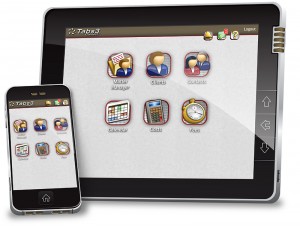
Check out the new image for Tabs3 Connect! You should use it in all your marketing materials. Be sure to use links to new Tabs3 Connect and FAQ pages on our web site as well.
Several consultants have asked how to get sample data into the Demo NFR installation of Tabs3 and PracticeMaster Platinum. You can use the following procedures to create sample data in the Demo NFR software.
Note: Keep in mind that this procedure will overwrite any data you have already entered into the software.
Once you have installed the Demo NFR CD to a new directory, verify you are able to log in successfully and then close all programs. Then, copy the following data from the Tutor folder into the Current Working Directory, selecting to replace files when prompted. (Note: The Tutor folder is under the Current Working Directory).
- Copy all folders from the Tutor folder and their contents (i.e., DATABASE, ADMIN, ASSEMBLED, BUSLAW, CMSYSTEM, etc.)
- Next you need to copy all *.DAT file EXCEPT the STCFG.DAT and STCUSTID.DAT files using the following procedures:
- Rename the STCFG.DAT file in your Current Working Directory to STCFG2.DAT.
- Rename the STCUSTID.DAT file in your Current Working Directory to STCUSTID2.DAT.
- Copy all *.DAT files from the Tutor folder to your Current Working Directory.
- Delete the STCFG.DAT file in your Current Working Directory.
- Delete the STCUSTID.DAT file in your Current Working Directory.
- Rename the STCFG2.DAT file in your Current Working Directory to STCFG.DAT.
- Rename the STCUSTID2.DAT file in your Current Working Directory to STCUSTID.DAT.
- Copy all *.T3D files from the Tutor folder to your Current Working Directory.
- Copy all *.TRD files from the Tutor folder to your Current Working Directory.
- Copy all *.APD files from the Tutor folder to your Current Working Directory.
- Copy all *.T3R files from the Tutor folder to your Current Working Directory.
- Copy all *.GRW files from the Tutor folder to your Current Working Directory.
- Copy all *.T3L files from the Tutor folder to your Current Working Directory.
- Renumber the timekeepers numbered higher than 5. Your NFR demo has a timekeeper limit of 5 whereas the sample data has 10 timekeepers.
You are now ready to demo the Platinum version software!
Note: Do not copy other files, such as *.EXE, or the software will not run as Platinum and you will need to reinstall the CD.
WorkFlows Enhancement
Aug 24
Good news regarding WorkFlows in Version 16.2! We’ve managed to squeeze in yet another new feature. You can now use expressions in WorkFlow Action fields when starting e-mail and eNote messages, or displaying messages. This new feature provides powerful flexibility allowing you to include field values, variables, and logic in these fields. Be sure to review the What’s New section of Knowledge Base for a complete list once Version 16.2 is released.
- Start E-mail: To, Cc, Bcc, Subject, Body.
- Start or Send eNote: To, Body.
- Display Message: Title, Body.
This feature is already available for download for those running the beta version of Version 16.2. As a reminder, we’re expecting a release next month. Get ready!
New Tradeshow Booth!
Aug 23
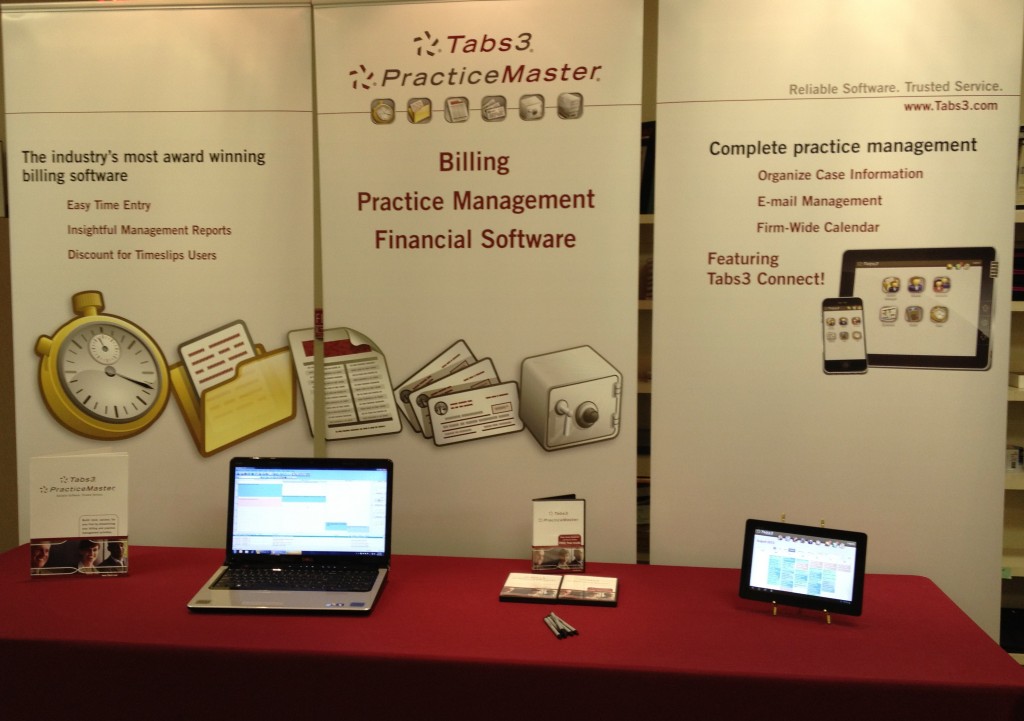
Check out our new tradeshow booth! You’ll be impressed with our new look. We rolled it out at the ABA Annual Meeting recently held in Chicago to rave reviews. We’ve replaced the back drapes with new signs and a modern look. I can’t lie, when combining this with our tablets that show off Tabs3 Connect, it even makes our sales reps look pretty good!
We realize everyone is excited about the release of version 16.2, as are we! We are currently in the beta phase, and more betas are needed before we can officially release version 16.2. To prevent any delays with the release, be sure to get your clients signed up for beta by having them e-mail [email protected].
Tabs3 Connect Licensing
As mentioned previously, Platinum levels of Tabs3 and PracticeMaster Premier on maintenance are both required to use the new Tabs3 Connect feature found in version 16.2. Remember, one active PracticeMaster user license is required for each user set up to use Tabs3 Connect.
Platinum users of PracticeMaster Basic
At one time, we did offer a Platinum level of PracticeMaster Basic. Although this isn’t sold any more, there is still a small group of firms using it. If you have one of these customers, make sure they are aware an upgrade to PracticeMaster Premier is needed to use Tabs3 Connect.
The current ODBC driver will not work with Platinum levels of version 16.2. When updating Tabs3 and PracticeMaster Software to version 16.2, firms that are using Platinum and the ODBC driver will also need an update to their ODBC driver. After version 16.2 is released, these firms will receive a letter and installation instructions along with the two CDs. Those that have signed up for beta will also receive two CDs. While these firms can download version 16.2 once it’s released, ODBC connections will not work until updating the ODBC driver. The ODBC driver will only be sent on CD. The ODBC update is free, and firms with multiple ODBC drivers will receive a separate CD for each one.
Platinum SQL firms will also need to update their ODBC driver, but will not require a CD. The files needed to update the Platinum SQL ODBC driver are included with the Tabs3 and PracticeMaster download. Instructions for updating the ODBC driver are included in KB Article R11490 (Version 16.2 Update Procedures).
Non-Platinum firms using ODBC will be reminded by our sales staff when upgrading to Platinum that they must also update their ODBC driver to continue using it. Installation instructions will be included with any order containing an ODBC update. Due to the weight of these packages, we will need to use package pricing as they will not fit in a letter. Please contact a member of the Sales Department if you have questions.
Testing between PracticeMaster and Worldox GX3 integration is now complete. PracticeMaster versions 16.1 and 16.2 (beta) have been tested, and both successfully integrate with Worldox GX3. If you have questions regarding this integration, please contact a member of the Support Department at 402-419-2210.
eBilling Hub
Jul 5
eBilling Hub is working on integrating with Tabs3 Platinum SQL. eBilling Hub helps firms manage high volumes of electronic billing (www.ebillinghub.com).
We have spoken to a few firms that are early adopters of the integration. Neither firm was aware that STI will only support integration with the Platinum SQL version of Tabs3.
If you have a client interested in this integration, you should make sure they are running Platinum SQL so there is no confusion or frustration after they purchase eBilling Hub.