More Version 16.2 Changes

We recently added the following new features to Version 16.2. Be sure you and your clients are on the most current version of the software. The following features were posted on October 4, 2012 (Version 16.2.3.369).

  • Accelerated conflict of interest searches in PracticeMaster Platinum – We recently optimized conflict searches to use the Platinum report accelerator, thus eliminating network traffic and dramatically improving searches that use the “Contains” option. For example, one “contains” search on our server that took 14 minutes before this change now takes less than 9 seconds.
  • Improved Outlook Journal background threading – Optimized the process of journaling an e-mail when being sent by moving the processing to a background thread, allowing you to continue to work in the software while the record is being updated in Outlook. The slowness typically only occurred when journaling the first e-mail in a session.
Net 30 Reminder

There’s been more interest than ever in Platinum because of the Version 16.2 release, and the buzz Tabs3 Connect has created.  As a reminder, we offer Net 30 terms to make it easy on existing clients to upgrade to Platinum without spending money up front.  These terms are available for any firm upgrading to Platinum or Platinum SQL, or for any firm upgrading from regular Platinum to Platinum SQL.  Once Platinum or Platinum SQL is installed, a firm is usually quite reluctant to return the product because the benefits more than outweigh the cost.  If you have questions about the Net 30 terms, please contact a member of the Sales Department.

Tabs3 Connect Changes

We made numerous changes to Tabs3 Connect during the Beta period. Many of these changes were implemented as a result of requests from our beta users. You may have already noticed some of these changes!

  • Added an All Fields button to the Client page
  • Added a Units field to the New Cost page
  • Added the Web Page field to the View Contact page
  • Added hyperlinks to phone, e-mail, and URL fields in the generic file pages
  • Added a View selector to the Calendar page (Calendar/Agenda/Task List)
  • The Calendar button on the main page remembers the last calendar view
  • Added a date selector to the Agenda View
  • Improved scaling and text wrapping on Android devices
  • Rearranged the View eNote page to save space and optimize for iPhones
  • Improved the indicator for new eNotes where the green eNote icon changes to white
  • Matter Manager has improved Area of Practice file selection logic
  • Added a clear button to the search box
  • PracticeMaster Help About window includes Tabs3 Connect release date and version
  • Added the Tabs3 Connect Access Log, which tracks all log ins, log outs, lock outs, and downloads

Because Tabs3 Connect is new, we are making changes and improvements.  It’s in everybody’s best interests that you make sure your Tabs3 Connect firms are updated on a regular basis (Help | Internet Resources | Software Update).

Also, don’t forget to periodically check out our Knowledge Base Article R11480, All About Tabs3 Connect. We continue to post additional information to this KB article. Recently, we added sections for How Tabs3 Connect Works, Security Considerations, and Best Practices.

Upgrade PracticeMaster Active Users Online

This month we added a new feature to PracticeMaster that allows PracticeMaster Version 16.2 users to activate additional user licenses online. Orders are placed the same way as before, but once the payment has cleared, we will notify whoever placed the order that the new license can be activated. The user will be instructed to select the following menu option in PracticeMaster:  Help | Internet Resources | Upgrade Active User Limit.  This new feature streamlines the ordering process for both you and your PracticeMaster clients. Place the order for additional licenses in the morning—install the license the same day!  Please note this only works for existing Version 16.2 users that are on maintenance.  Call us if you have any questions!

Platinum NFR Best Practices

Many of you have already ordered and installed your Demo NFR license. If you
haven’t yet taken advantage of this offer, now is the time! The Demo NFR license
makes it easier than ever to demo Tabs3 Connect and all of the other exciting
Platinum features.

For those of you who are using the Demo NFR license, we would like to provide
you with the following tips:

  • Create your own sample data or use the instructions to install the standard sample data that we posted on August 30, 2012.
    • If using the sample data, renumber the timekeepers. Your NFR demo has a timekeeper limit of 5 whereas the sample data has 10 timekeepers.
    • After setting up users, renumbering timekeepers, and adding any of your own data customizations, make a backup and save it. If using HotBackup, rename the backup so it doesn’t get overwritten. Periodically restore this backup in order to erase the data that you enter during demos as well as any other data that prospects may have entered with their Tabs3 Connect login.
  • When providing your Platinum prospects with credentials for your Tabs3 Connect:
    • Use unique e-mail addresses for each user. The same e-mail address can only be used once on Tabs3 Connect. The e-mail addresses do not need to be functional. It may be better not to use the law firm’s domain. Consider using your e-mail domain, such as [email protected], [email protected], etc.
    • Consider using the prospect’s firm name as the password.
    • Make it clear to the prospect how long the credentials will be available. You will need to determine if it is okay for multiple firms to access Tabs3 Connect at the same time. Keep in mind that all firms with active credentials will be able to see the other user names, timekeeper names, client names, etc.
    • Refresh the data regularly to eliminate data that your prospects may have entered. You may not want data entered by some prospects seen by other prospects. Be aware that data entered could potentially be inappropriate or offensive to others.
    • Test the credentials you have set up before distributing them.
  • Periodically review usage by viewing the Tabs3 Connect Access Log in System Configuration.
  • Consider installing your NFR Platinum Demo on a server that is turned on and has Internet access 24/7. Make it clear to the prospect what hours the credentials will be available.
  • Install your NFR Platinum Demo on a computer that doesn’t have another Platinum installation. (If you do need to do this, call us.)

Let us know if you have other tips or best practices for the NFR demo that you’d like to share so we can update this post.

New Platinum Whitepaper

Be sure to replace the old Platinum Whitepaper you use for marketing with the new Version 16.2 edition.  Its new headline feature is Tabs3 Connect.  Follow the link below for the PDF.

http://www.tabs3.com/press_articles/Platinum_Whitepaper.pdf

Release of Version 16.2

We are excited about the release of Version 16.2 last Thursday!  The response so far has been very positive, especially for Tabs3 Connect.  Tabs3 Connect will work on tablets, smartphones or laptops that use a standard web browser.  Here are a few of the other enhancements you’ll find in Version 16.2:

  • Reprint Statements using a range of statement dates for one or more clients
  • Mark timekeepers as inactive and decide whether to include them in lookup windows and timekeeper lists 

Remember to visit the Knowledge Base for a complete What’s New List. 

Tabs3 Connect will be a great sales tool!  You should e-mail your existing clients and leads as soon as possible.  Here are two samples you can use.  Good luck and let us know if we can help you promote Tabs3 Connect.

(Current clients)

I just spoke with Dan Berlin, the President of Software Technology, Inc.  He told me that they just released Tabs3 Connect.  It lets you use Tabs3 and PracticeMaster right from your phone or iPad.  Use your tablet to add a fee, e-mail a contact, review client information on your phone, and more.  Let me know if you are interested and I can send you a login to my version of Tabs3 Connect so you can see how it will benefit you and your practice.

 [your name and contact info]

(Prospects)

Thank you for your interest in Tabs3 and PracticeMaster Software. I just spoke with Dan Berlin, the President of Software Technology, Inc.  He told me that they just released Version 16.2.  A new feature called Tabs3 Connect lets you access Tabs3 and PracticeMaster right from your phone or iPad!   Use your tablet to add a fee, e-mail a contact, review client information on your phone, and more.  Let me know if you are interested and I can send you a login to my version of Tabs3 Connect so you can see how it will benefit you and your practice.

[your name and contact info]

New Tabs3 Connect Image

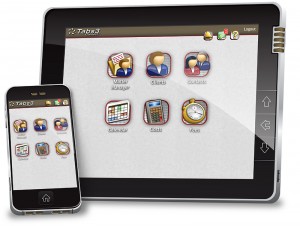
Check out the new image for Tabs3 Connect!  You should use it in all your marketing materials.  Be sure to use links to new Tabs3 Connect and FAQ pages on our web site as well.  

Tabs3 Connect

Platinum Demo NFR and Sample Data

Several consultants have asked how to get sample data into the Demo NFR installation of Tabs3 and PracticeMaster Platinum. You can use the following procedures to create sample data in the Demo NFR software.

Note: Keep in mind that this procedure will overwrite any data you have already entered into the software.

Once you have installed the Demo NFR CD to a new directory, verify you are able to log in successfully and then close all programs. Then, copy the following data from the Tutor folder into the Current Working Directory, selecting to replace files when prompted. (Note: The Tutor folder is under the Current Working Directory).

  1. Copy all folders from the Tutor folder and their contents (i.e., DATABASE, ADMIN, ASSEMBLED, BUSLAW, CMSYSTEM, etc.)
  2. Next you need to copy all *.DAT file EXCEPT the STCFG.DAT and STCUSTID.DAT files using the following procedures:
    1. Rename the STCFG.DAT file in your Current Working Directory to STCFG2.DAT.
    2. Rename the STCUSTID.DAT file in your Current Working Directory to STCUSTID2.DAT.
    3. Copy all *.DAT files from the Tutor folder to your Current Working Directory.
    4. Delete the STCFG.DAT file in your Current Working Directory.
    5. Delete the STCUSTID.DAT file in your Current Working Directory.
    6. Rename the STCFG2.DAT file in your Current Working Directory to STCFG.DAT.
    7. Rename the STCUSTID2.DAT file in your Current Working Directory to STCUSTID.DAT.
  3. Copy all *.T3D files from the Tutor folder to your Current Working Directory.
  4. Copy all *.TRD files from the Tutor folder to your Current Working Directory.
  5. Copy all *.APD files from the Tutor folder to your Current Working Directory.
  6. Copy all *.T3R files from the Tutor folder to your Current Working Directory.
  7. Copy all *.GRW files from the Tutor folder to your Current Working Directory.
  8. Copy all *.T3L files from the Tutor folder to your Current Working Directory.
  9. Renumber the timekeepers numbered higher than 5.  Your NFR demo has a timekeeper limit of 5 whereas the sample data has 10 timekeepers.

You are now ready to demo the Platinum version software!

Note: Do not copy other files, such as *.EXE, or the software will not run as Platinum and you will need to reinstall the CD.

WorkFlows Enhancement

Good news regarding WorkFlows in Version 16.2!  We’ve managed to squeeze in yet another new feature.  You can now use expressions in WorkFlow Action fields when starting e-mail and eNote messages, or displaying messages. This new feature provides powerful flexibility allowing you to include field values, variables, and logic in these fields.  Be sure to review the What’s New section of Knowledge Base for a complete list once Version 16.2 is released. 

  • Start E-mail: To, Cc, Bcc, Subject, Body.
  • Start or Send eNote: To, Body.
  • Display Message: Title, Body. 

This feature is already available for download for those running the beta version of Version 16.2.  As a reminder, we’re expecting a release next month.  Get ready!